Article Overview
Learn how to connect a Meta Quest 3S headset to WiFi, which is required to log in to Osso Loop™ and access training modules.
Step-by-Step WiFi Connection
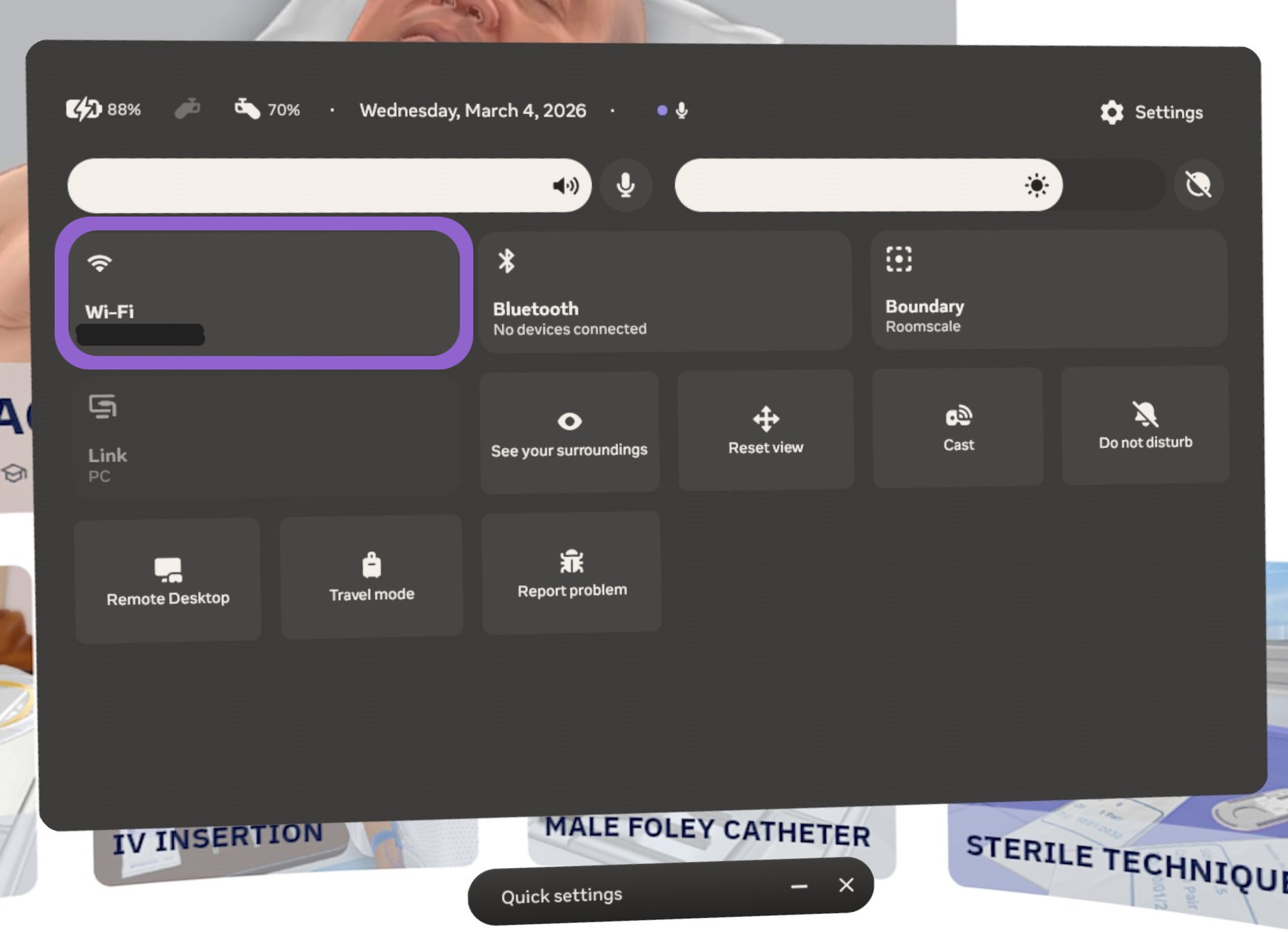
- Open the Quick Settings menu located on the Meta Menu taskbar.
Note: Press the Meta Button if there is no taskbar in view.
- Select the Wi-Fi menu.
- Choose the available network and follow the on-screen instructions to connect.
What if the Network Requires Additional Setup?
Some networks may require additional setup help from an IT team. Reach out to them if additional assistance is needed.
For an in-depth guide on the additional steps involving IP ranges, firewalls, and certificate protocols, review Osso VR's Guide on Network Setup: WiFi, IP Ranges and Speeds.