Article Overview
Casting allows activity inside a Meta Quest 3S headset to be viewed in real time on a nearby computer or tablet. This is useful during Osso Nurse Training sessions when live observation, evaluation, or debriefing is needed.
Health systems may use one of two casting methods depending on how devices were set up. Confirm the applicable method with the device administrator.
Meta Horizon Managed Services (MHMS) Casting
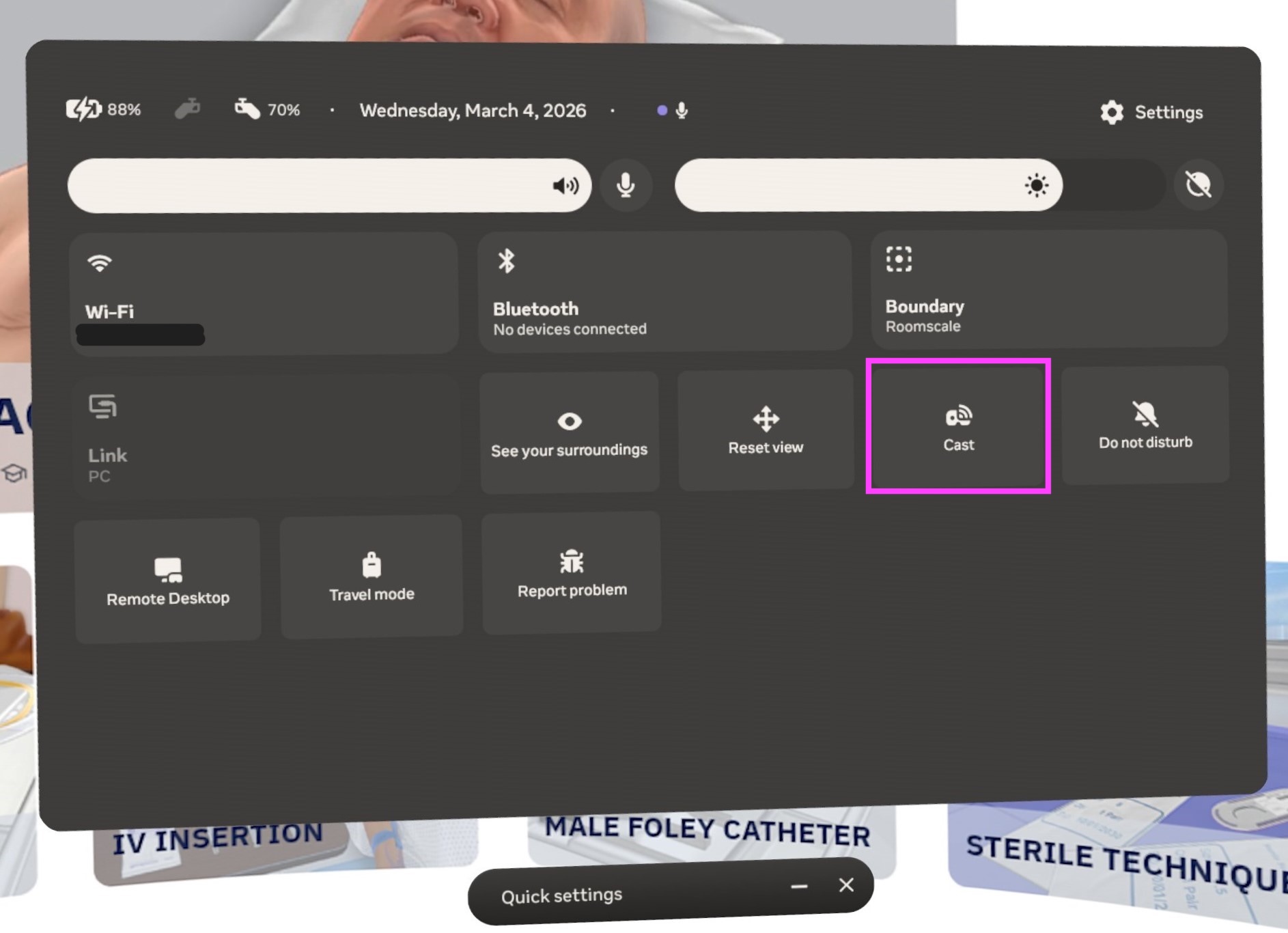
- In the headset, select the Casting button in the Quick Settings menu.
Note: If the Osso Nurse Training app is already open, quick press the Meta button on the right controller to open the toolbar, then select the clock to open the Quick Settings menu.
- Select Computer from the list of available devices.
- On a nearby Computer or Tablet, go to the website listed and enter the 6-digit code.
Note: No account is required to access this link!
- Casting should begin after entering the code. The screen can be maximized by selecting the fullscreen button in the bottom right of the player. The volume of the cast can also be adjusted by using the volume slider.
Consumer Meta Casting
- On a computer, go to https://horizon.meta.com/casting/ and log in with the headset’s Meta account.
- In the headset, select the Casting button in the Quick Settings menu.
Note: If the Osso Nurse Training app is already open, quick press the Meta button on the right controller to open the toolbar, then select the clock to open the Quick Settings menu.
- Select Web, and then Next.
- Select Computer, then select Next to connect.
- Casting should begin. The screen can be maximized by selecting the fullscreen button in the bottom right of the player. The volume of the cast can also be adjusted by using the volume slider.
How To Stop Casting
To stop casting with either option above, return to the Casting menu in the headset and select Stop Casting.
Note: Casting will end if the headset goes to sleep.