Support Article
See all articles

How to Log In and Access Scenarios in Osso Loop™

Learn how to log in to Osso Loop™, connect a VR headset, select procedural skills training scenarios and review performance data after each session.

Article Overview

The Osso Loop™ Learning Platform is the web-based companion platform for the Osso VR Nursing Series. Use Osso Loop™ to access and launch Osso Nurse Training scenarios, review prebriefing materials, and review performance data after completing a scenario.

Log in to Osso Loop™ Learning Platform
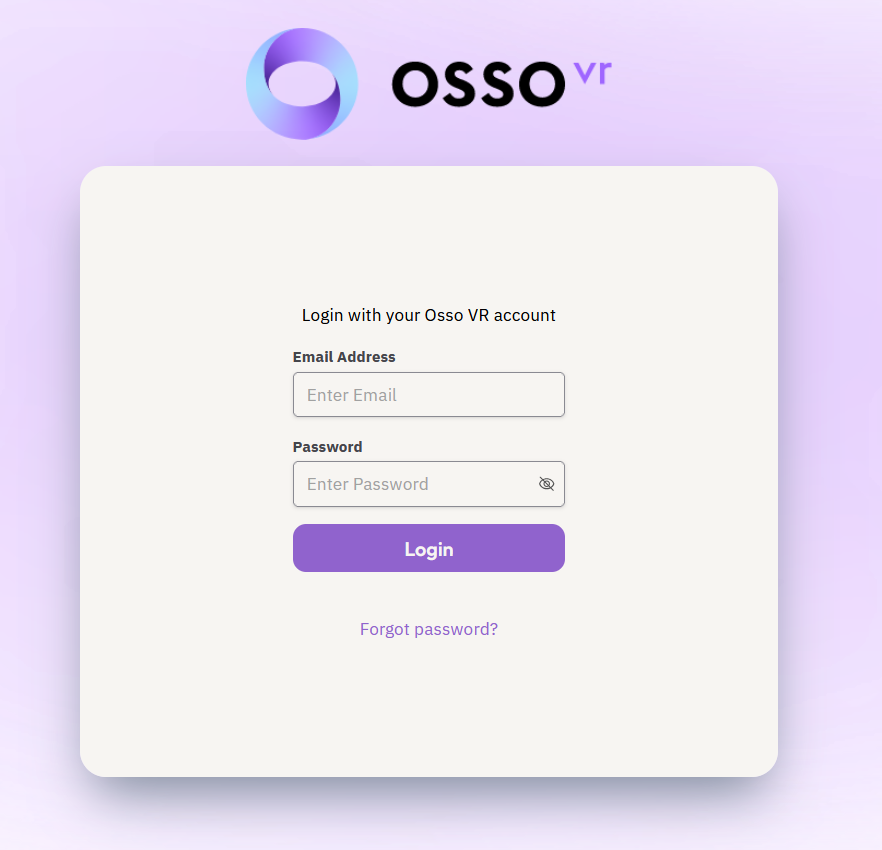
  1. On a phone, tablet, or computer, go to loop.ossovr.com and log in with an Osso account.

    Note: Users should receive email invitations for their accounts before accessing the website. Contact an organization supervisor if you do not receive an invite to Osso Loop™.
  2. From the dashboard, select a scenario by selecting the tile.

Complete Prebriefing

Review the Prebriefing information. Once complete, a QR Code appears in the Start Simulation screen.

Open the Osso Nurse Training App in VR

Put on the VR headset and open the Osso Nurse Training app.

  1. The headset should immediately begin scanning for a QR Code.
  2. Look at the QR code on your phone, tablet, or computer screen.
  3. After scanning the code, it will automatically login to the app and open the Start Simulation screen.

Select Practice or Test Mode

  1. Select either Practice Mode or Test Mode to begin. For more information on training modes, visit Training Modes in Osso Nurse Training  support article. 

    Note: A tutorial will run on first launch. To launch the tutorial again, activate the toggle in the
    Start Simulation screen.
  2. Follow the steps and complete the scenario.

Debrief and performance data can be accessed on Osso Loop™ learning platform via loop.ossovr.com.

Article Overview

The Osso Loop™ Learning Platform is the web-based companion platform for the Osso VR Nursing Series. Use Osso Loop™ to access and launch Osso Nurse Training scenarios, review prebriefing materials, and review performance data after completing a scenario.

Log in to Osso Loop™ Learning Platform

  1. On a phone, tablet, or computer, go to loop.ossovr.com and log in with an Osso account.

    Note: Users should receive email invitations for their accounts before accessing the website. Contact an organization supervisor if you do not receive an invite to Osso Loop™.
  2. From the dashboard, select a scenario by selecting the tile.

Complete Prebriefing

Review the Prebriefing information. Once complete, a QR Code appears in the Start Simulation screen.

Open the Osso Nurse Training App in VR

Put on the VR headset and open the Osso Nurse Training app.

  1. The headset should immediately begin scanning for a QR Code.
  2. Look at the QR code on your phone, tablet, or computer screen.
  3. After scanning the code, it will automatically login to the app and open the Start Simulation screen.

Select Practice or Test Mode

  1. Select either Practice Mode or Test Mode to begin. For more information on training modes, visit Training Modes in Osso Nurse Training  support article. 

    Note: A tutorial will run on first launch. To launch the tutorial again, activate the toggle in the
    Start Simulation screen.
  2. Follow the steps and complete the scenario.

Debrief and performance data can be accessed on Osso Loop™ learning platform via loop.ossovr.com.

Not seeing what you were looking for?

More From Support
Back to Support Portal