Article Overview
The Meta Quest 3S is the VR headset used with Osso Nurse Training for immersive procedural skills training. This guide covers what's included with the Quest 3S and how it works with Osso Nurse Training.
What comes with the Meta Quest 3S headset?
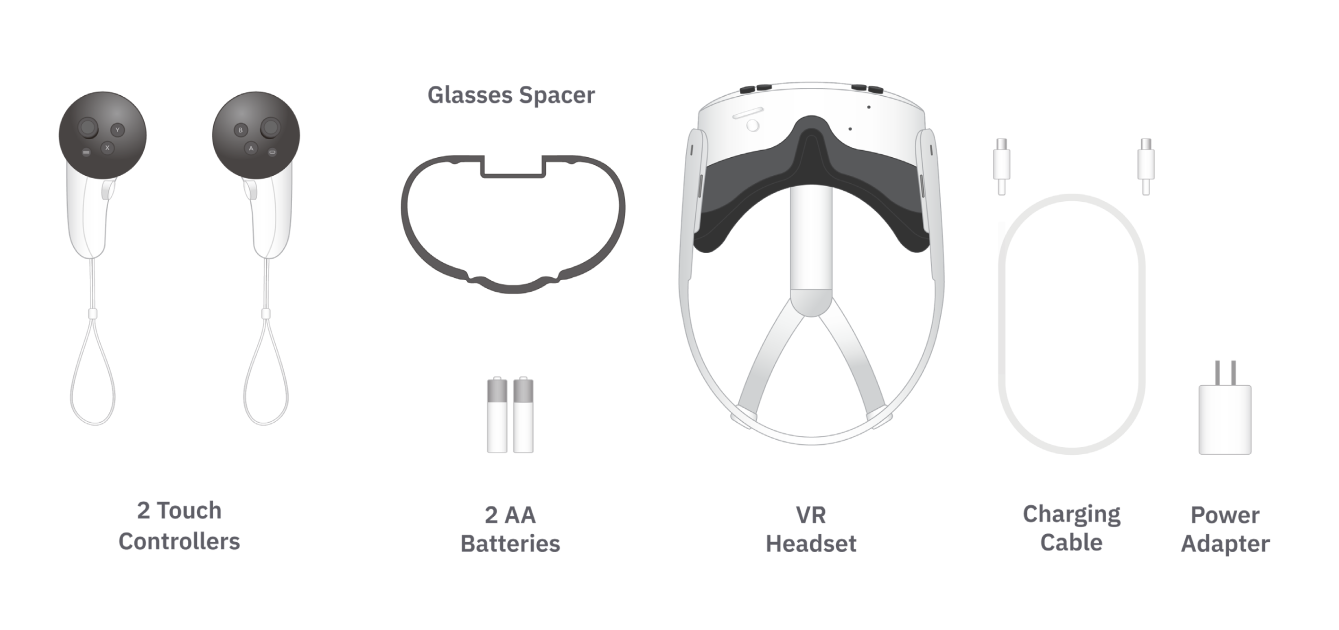
2 Touch Controllers
Each controller comes with 2 wrist bands for safety while using VR.
2 AA Batteries
Any standard AA battery will work with the controllers. It is recommended to keep replacement batteries available.
Glasses Spacer
The glasses spacer allows for usage of most glasses with the VR system. Remove the padded face cover on the headset to install the glasses spacer.
Charging Cable
The headset includes a power adapter and USB-C to USB-C cable.
What are the buttons and ports on the Quest 3S?
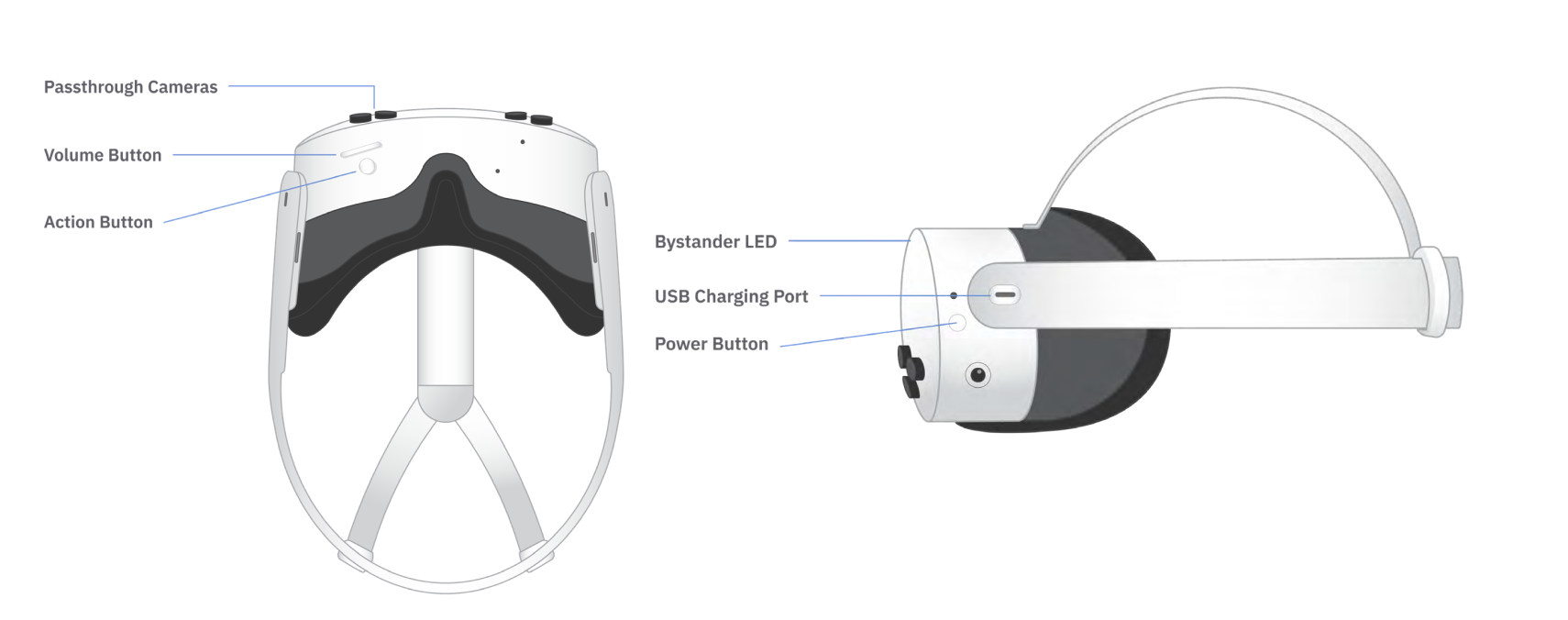
Power Button
The Power Button turns the headset on or off. To transition the headset to sleep or wake status, perform a quick press.
A long press will power the headset on or off completely.
Volume Button
The Volume Button adjusts in-headset audio.
Action Button
The Action Button activates passthrough view. A quick press will toggle on and off passthrough mode.
USB Charging Port
This port is used to charge the headset or connect it to a computer using a USB-C charging cable.
Bystander LED
The Bystander LED is a small white light on the exterior of the headset; it indicates when the external cameras are active.
How do the Quest 3S controllers work with Osso Nurse Training?
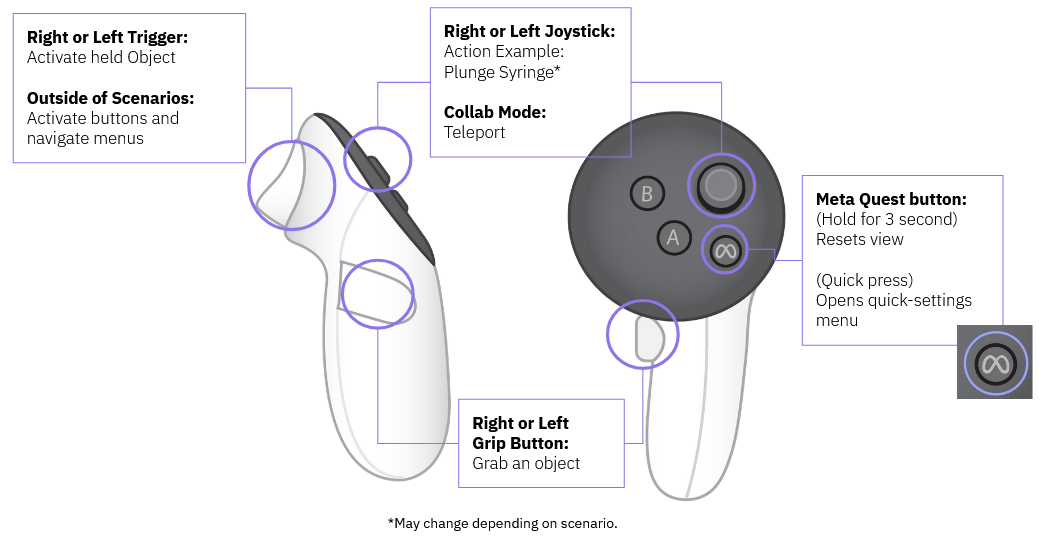
Note: Meta Touch Controllers use AA batteries. To access the battery compartment, press the triangular release button on the side opposite the corresponding grip button, then remove the side cover.
Trigger Button
The Trigger Button is used to make selections or perform actions, such as navigating menus.
Grip Button
The Grip Button is used to grab, hold and place objects.
Left and Right Joysticks
When prompted, the left and right joysticks are used to complete actions such as plunging a syringe. A short press to the left or right changes the view.
A long forward press enables teleportation only in Collaborative Training Mode.
Y Button
In test mode this button is used to activate hints.
Meta Quest Button
A short press of the Meta Quest button opens the Meta Quick Settings menu.
A long press recenters the view.